
Download TikTok Videos on PC (Windows)
Save TikToks to your Windows laptop or desktop in HD, without the watermark and without installing any software.
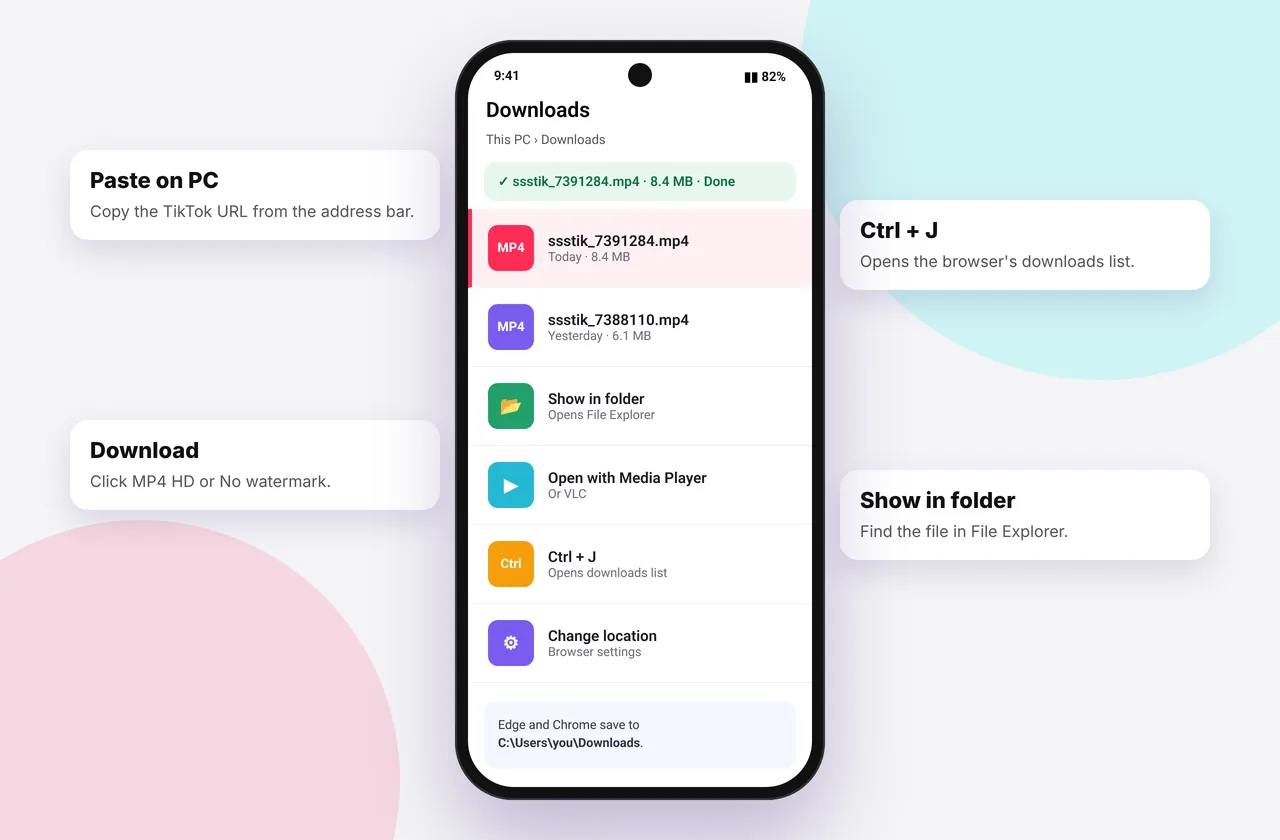
On a Windows PC you don't need an app or a desktop program to save TikToks. Any modern browser (Chrome, Edge, Firefox, Opera or Brave) works with SSSTikTok. A bigger screen also makes it easier to manage lots of downloads and edit them afterwards.

On Windows and Chromebook, our browser-based TikTok video download tool needs no software or extension.
Step-by-step on Windows
- Open tiktok.com in your browser and click the video you want. The URL changes to something like tiktok.com/@creator/video/7xxxxxxxx.
- Copy the URL from the address bar (Ctrl + L, then Ctrl + C). Or click Share → Copy link under the video.
- Open ssstiktokdownloader.com in a new tab and paste the link (Ctrl + V).
- Click Download and choose MP4 · No watermark, HD or MP3.
- The file saves to This PC → Downloads.
Keyboard shortcut: press Ctrl + J to open your browser's download list and jump straight to the file.
If the video opens instead of downloading
Some browsers play MP4 files in a tab. To save it:
- Right-click the download button and choose Save link as…, then pick a folder.
- Or, if it's already playing, right-click the video → Save video as….
- In Edge you can also press Ctrl + S on the video tab.
Change where downloads are saved
- Chrome: Settings → Downloads → Location → Change. Turn on "Ask where to save each file" to choose a folder each time.
- Edge: Settings → Downloads → Location.
- Firefox: Settings → General → Files and Applications → Downloads.
See where TikTok downloads are saved for every browser.
Playing and editing on Windows
The MP4 plays in the Media Player or Films & TV app. If a file won't play, it may use the HEVC codec. Install Microsoft's HEVC Video Extensions from the Microsoft Store, or use the free VLC. For editing, Clipchamp (built into Windows 11), DaVinci Resolve and Premiere Pro open the clean file directly. Use the HD downloader for the sharpest source.
Downloading TikTok audio on PC
Click MP3 · Audio to save the soundtrack, which is useful for podcasts, presentations (with permission) or ringtones. The MP3 downloader orders the audio first.
Saving many videos efficiently
There's no bulk download, deliberately, to keep the service fair, but you can work quickly:
- Keep TikTok open in one tab and SSSTikTok in another.
- Copy a link (Ctrl + L, Ctrl + C), switch tabs (Ctrl + Tab), paste (Ctrl + V) and press Enter.
- Turn on "Ask where to save" in your browser so you can name files as you go.
Troubleshooting on Windows
- "Network error": a VPN, proxy or firewall may be interfering. Try turning it off briefly.
- Antivirus warning: MP4 and MP3 files are safe. Only download the files you asked for, and ignore any ad that offers software.
- Invalid link: make sure you copied a video URL, not a profile or search URL. See TikTok link invalid.
- No sound: see no sound after download.
More fixes are in the errors and fixes hub.
Chromebook and Linux
The same steps work on ChromeOS and Linux. On a Chromebook, files go to the Files app → Downloads. On a Mac, see our Mac guide.
Using Microsoft Edge specifically
Edge is the default browser on Windows. Its downloads panel opens at the top right after each file (or press Ctrl + J). If Edge shows "couldn't download – blocked", click ⋯ next to the entry and choose Keep. MP4 and MP3 files are safe, and the warning is generic. To pick a folder each time, turn on Settings → Downloads → Ask me what to do with each download.
Naming and organising files
Windows sorts files alphabetically, so a simple naming scheme helps: for example `2026-10 recipe pasta.mp4`. Select several files, press F2 and type a base name, and Windows numbers them automatically. Keep downloads in Videos → TikTok rather than in Downloads, which tends to fill up.
Editing in Clipchamp (built into Windows 11)
- Open Clipchamp and click Create a new video.
- Drag in your downloaded MP4.
- Set the aspect ratio to 9:16 to keep the vertical frame.
- Trim, add captions or music, then Export → 1080p.
Only republish videos you made or have permission to use.
Mistakes to avoid on Windows
- Clicking adverts that offer a "downloader" .exe. You never need to install software to use SSSTikTok.
- Saving to a OneDrive folder that's set to online-only, so files seem to vanish when you're offline.
- Assuming a file is broken when it's HEVC. Install the codec or use VLC.
Every SSSTikTok tool
Safe, private and respectful
- No login, ever. We never ask for your TikTok password. Treat any site that does as a phishing risk.
- No installs. Everything runs in your browser. Ignore any advert that offers an app, extension or "codec".
- No history. Results are cached for about 15 minutes, then deleted. See the privacy policy.
- Public content only. We don't bypass private accounts or deleted posts.
- Credit creators. Saving for personal use is common, but reposting needs permission. Read is it legal to download TikTok videos?
Frequently asked questions
Do I need software to download TikTok on PC?
No. Any browser works with SSSTikTok.
Where are downloads saved on Windows?
By default in This PC → Downloads. Press Ctrl + J in your browser to see them.
Why does the video play instead of downloading?
Your browser opens MP4s in a tab. Right-click the button and choose “Save link as…”.
Can I download TikTok on Windows 7?
Only with a browser that still gets updates. Windows 10 or 11 is recommended.
Why won't the MP4 play in Windows?
It may use HEVC. Install HEVC Video Extensions or use VLC.
Does it work on a Chromebook?
Yes. Files are saved to Files → Downloads.