
Download TikTok Videos on iPad
Save TikToks on any iPad, then move them to Photos, all from Safari with no app needed.
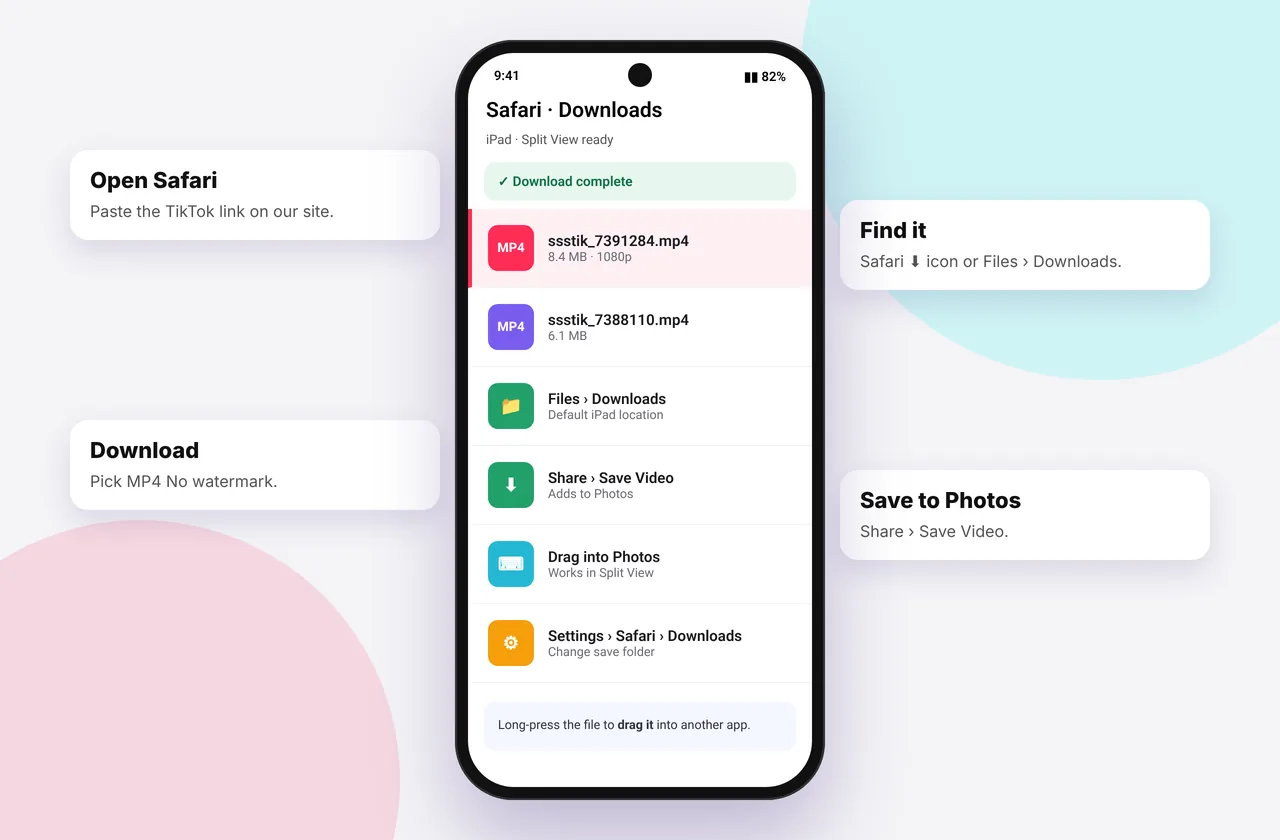
Downloading TikToks on iPad works almost exactly like it does on iPhone. The main difference is that Safari on iPad pretends to be a desktop browser, which changes how TikTok's website behaves. The steps below cover that, plus a split-view trick that makes saving several videos much faster.

iPadOS Safari lets you download TikTok videos without installing an app.
Step-by-step on iPad
- In the TikTok app, tap Share → Copy link. If you're using tiktok.com in Safari instead, copy the address bar.
- Open ssstiktokdownloader.com in Safari.
- Tap Paste (allow paste if asked), then Download.
- Choose MP4 · No watermark or HD, then tap Download in Safari's prompt.
- Open Files → Downloads, tap the video, then Share → Save Video to move it to Photos.
Desktop mode quirks
iPadOS requests desktop websites by default. On tiktok.com that can mean the video URL looks different, or clicking Share opens a desktop menu. Both are fine. Any URL containing /video/ or /photo/ works. If a page looks broken, tap aA → Request Mobile Website.
If the MP4 button opens the video full-screen instead of downloading, long-press it and choose Download Linked File.
Split View: the fastest way on iPad
- Open TikTok (app or website) and Safari side by side in Split View. Tap the three dots at the top of a window and choose Split View.
- Drag a video's link from TikTok's share sheet, or copy it, and paste it into SSSTikTok in the other window.
- Download and repeat. You never lose your place in TikTok.
Moving videos to Photos and other apps
From Files → Downloads you can:
- Save Video to Photos
- Share to iMovie, LumaFusion or CapCut for editing
- Move the file to an iCloud Drive folder to keep it organised
Our camera roll guide explains batch-saving several files at once.
Audio and photos on iPad
Tap MP3 · Audio to save the sound (MP3 downloader), or use Download all on photo slideshows (photo downloader). Allow multiple downloads if Safari asks.
Problems on iPad
- Nothing downloads: check Settings → Safari → Downloads and make sure a location is set.
- Low storage: iPads with 32 or 64 GB fill up fast, so clear space in Settings → General → iPad Storage.
- Old iPadOS: you need iPadOS 13 or later to download files in Safari.
For more, see the errors and fixes hub and where TikTok downloads are saved.
Which iPads and iPadOS versions work
Any iPad that runs iPadOS 13 or later can download files in Safari. That includes the iPad Air 2 and later, the iPad mini 4 and later, every iPad Pro and the 5th-generation iPad onwards. To check your version, open Settings → General → About and look at "iPadOS Version". If you're on iPadOS 12 or older, Safari can't save files at all. Your options then are to download on another device and AirDrop the video over, or to use a computer.
Safari, Chrome or Firefox on iPad?
All iPad browsers use Apple's WebKit engine underneath, so they behave similarly, but there are small differences:
- Safari is the most reliable. It shows a clear download prompt, keeps a downloads list (the arrow icon in the toolbar) and saves to a folder you choose.
- Chrome saves files to Files → On My iPad → Chrome. To open one, tap ⋯ → Downloads. It sometimes opens the video in a viewer first. Tap Open in… then Save to Files.
- Firefox also has a Downloads panel (☰ → Downloads). It works fine, but long-press menus differ slightly.
If one browser misbehaves, try another before assuming the video is the problem.
Choosing where Safari saves on iPad
Go to Settings → Safari → Downloads. You'll see three choices: iCloud Drive, On My iPad or Other… (any folder, including an external USB-C drive on newer iPads).
- Choose On My iPad if your iCloud storage is nearly full. Downloads to iCloud Drive fail silently when you're out of space.
- Choose iCloud Drive if you want the file to appear on your Mac and iPhone automatically.
- Choose Other… and pick a USB-C stick if you're archiving lots of videos and want to keep the iPad's storage free.
Working with Stage Manager and external displays
On M1 and later iPads with Stage Manager, you can keep TikTok, Safari and Files open as overlapping windows. A useful layout is TikTok on the left, Safari with SSSTikTok on the right and a small Files window at the bottom. Each downloaded video appears in Files as soon as it finishes, so you can rename or move it straight away. On an external monitor, the HD version of a video is noticeably sharper, so use the HD downloader when you plan to watch on the big screen.
Keyboard shortcuts with a Magic Keyboard
If you use a keyboard with your iPad, these Safari shortcuts speed things up:
- ⌘ + L selects the address bar
- ⌘ + V pastes the TikTok link into the box
- Return submits the form
- ⌥ + ⌘ + L opens the Downloads list
- ⌘ + Tab switches back to TikTok for the next link
Editing on iPad after downloading
The iPad is a great editing device. After saving the clean MP4:
- iMovie: tap Start New Project → Movie, then pick the video from Photos. Tap the clip and choose Split or Trim to cut it down.
- CapCut: tap New project and import from Photos. CapCut handles 9:16 vertical videos natively and can export at 1080p.
- LumaFusion: the professional option. Import directly from Files, which avoids filling up your photo library.
Only edit and republish videos you made yourself or have permission to use. See our watermark guide for the etiquette.
Common mistakes on iPad
- Copying the profile link instead of the video. On the iPad's larger layout, tapping Share on a profile page is easy to do by accident. Make sure the video is playing full-screen before you tap Share.
- Leaving Low Power Mode on during big downloads. It can pause background activity. Keep Safari in the foreground until the arrow icon finishes.
- Assuming the file is lost. It's almost always in Files → Downloads, or Files → On My iPad → Chrome if you used Chrome.
- Saving to iCloud with no space left. The download appears to finish, but the file never shows up. Switch Safari's download location to On My iPad.
Mini FAQ: iPad specifics
Can I download TikToks on an iPad mini? Yes. The steps are identical, and the iPad mini's smaller screen behaves more like an iPhone, so Safari may load the mobile site automatically.
Why does my iPad show the desktop version of tiktok.com? iPadOS asks for desktop sites by default. Tap aA → Request Mobile Website if you prefer the phone layout, or leave it. Both give valid links.
Can I save to an SD card or USB drive? Yes, on iPads with USB-C. Set Safari's download location to Other… and choose the drive, or move files there afterwards in the Files app.
Every SSSTikTok tool
Safe, private and respectful
- No login, ever. We never ask for your TikTok password. Treat any site that does as a phishing risk.
- No installs. Everything runs in your browser. Ignore any advert that offers an app, extension or "codec".
- No history. Results are cached for about 15 minutes, then deleted. See the privacy policy.
- Public content only. We don't bypass private accounts or deleted posts.
- Credit creators. Saving for personal use is common, but reposting needs permission. Read is it legal to download TikTok videos?
Frequently asked questions
Is downloading TikTok on iPad the same as iPhone?
Almost. The main difference is that Safari on iPad loads desktop sites by default.
Why does the video open instead of downloading on iPad?
Long-press the button and choose “Download Linked File”.
Where are downloads on iPad?
They're in Files → Downloads. Use Share → Save Video to move them to Photos.
Can I use split view?
Yes. Running TikTok and Safari side by side is the quickest way to save several videos.